Install & first launch
PLASMA runs a local web server and opens in your browser at
http://127.0.0.1:7860. Nothing leaves your machine.
Get PLASMA
Not sure which to pick? Choose Download the app and click the link for your operating system. None of the options below need Python, except the ones under For developers.
A ready-to-run PLASMA — no Python, no liblsl install. Always the
latest release.
Download PLASMA for Apple Silicon (.dmg)
For Apple Silicon only (M1 and later)
For Intel CPUs, please see For Developers → From Source.
- Open the
.dmgand drag PLASMA.app into Applications. - The first time only: right-click PLASMA.app → Open, then Open again. PLASMA isn't code-signed or notarized, so a plain double-click is blocked by Gatekeeper until you approve it once.
Launching PLASMA opens a Terminal window running the app, then your
browser at http://127.0.0.1:7860.
Skip the Gatekeeper step and get one-command updates
See Package manager → macOS (Homebrew).
No installer? Use the raw folder
PLASMA_MacOS_arm64.zip
is the bare app folder (the executable plus a support-files
directory — keep the two together). Unzip it, then:
xattr -dr com.apple.quarantine PLASMA_MacOS_arm64/   # let Gatekeeper run it
chmod +x PLASMA_MacOS_arm64/PLASMA_MacOS_arm64
./PLASMA_MacOS_arm64/PLASMA_MacOS_arm64
Download PLASMA for Windows (Setup.exe)
64-bit (x86-64) Windows.
- Run
PLASMA_Windows_x64_Setup.exe. - It's unsigned, so SmartScreen warns "Windows protected your PC" — click More info → Run anyway.
Installs to Program Files with a Start Menu shortcut, an optional
Desktop icon, and an uninstaller. Launching PLASMA opens a console
window running the app, then your browser at
http://127.0.0.1:7860.
Skip the SmartScreen warning and get one-command updates
See Package manager → Windows (Scoop).
No installer? Use the raw folder
PLASMA_Windows_x64.zip
is the bare app folder (the executable plus a support-files
directory — keep the two together). Unzip it and run
PLASMA_Windows_x64.exe from inside the folder. SmartScreen
warns on first run the same way as the installer.
| Machine | Download |
|---|---|
| x86-64 PC | PLASMA_Linux_x64.tar.gz |
| ARM64 — Jetson Orin, JetPack 6 | PLASMA_Linux_arm64.tar.gz |
It's a folder (the executable plus a support-files directory), not a single file — keep the two together and run the executable from inside it:
tar xzf PLASMA_Linux_x64.tar.gz
chmod +x PLASMA_Linux_x64/PLASMA_Linux_x64
./PLASMA_Linux_x64/PLASMA_Linux_x64
(Substitute arm64 for x64 on a Jetson.) The app starts in the
terminal and opens your browser at http://127.0.0.1:7860.
PLASMA_Linux_arm64 is built against Ubuntu 22.04 (glibc 2.35), so it
needs JetPack 6. On JetPack 5 (Ubuntu 20.04), install from source
instead (For developers → From source). It does not bundle the
qb2 LiDAR plugin.
One command to install, one to update, and no security warning on first launch. Installs the same app as Download the app.
Homebrew
# one-time, if you don't have Homebrew yet (asks for your password)
/bin/bash -c "$(curl -fsSL https://raw.githubusercontent.com/Homebrew/install/HEAD/install.sh)"

brew install --cask yuyichang/plasma/plasma
When the Homebrew installer finishes, run the commands it prints under
Next steps — they put brew on your PATH (Homebrew lives in
/opt/homebrew on Apple silicon). Otherwise the next line fails with
command not found: brew.
Installs PLASMA.app into /Applications (launch it from
Spotlight, the Dock, or Finder) plus a plasma command on $PATH.
Apple silicon only
plasma
PLASMA has no GUI window of its own — it's a local web server. Either
launch path opens a Terminal window running the real console app, then
your browser at http://127.0.0.1:7860. The binary isn't code-signed
or notarized, but the cask clears the quarantine attribute on install,
so Gatekeeper won't block the first run.
brew upgrade --cask plasma      # update to the latest release
brew uninstall --cask plasma    # remove
Nightly builds
Want tomorrow's fixes today instead of the last tagged release?
Install plasma@nightly instead — built automatically off dev
every day at 07:00 UTC, so expect it to be less stable:
brew install --cask yuyichang/plasma/plasma@nightly
Conflicts with plasma (both install PLASMA.app) — only one can
be installed at a time. Homebrew has no version number to compare
a nightly build against, so brew upgrade won't fetch a new one on
its own; run brew reinstall --cask plasma@nightly to grab the
latest build.
Scoop
# one-time, if you don't have Scoop yet (no admin needed)
Set-ExecutionPolicy -ExecutionPolicy RemoteSigned -Scope CurrentUser
irm get.scoop.sh | iex

scoop bucket add plasma https://github.com/YuyiChang/scoop-plasma
scoop install plasma
Installs PLASMA into ~\scoop\apps\plasma with a PLASMA Start Menu
shortcut plus a plasma command on PATH. x86-64 only.
plasma
PLASMA has no GUI window of its own — it's a local web server. Either
launch path opens a console window running the app, then your browser
at http://127.0.0.1:7860. The binary isn't signed; SmartScreen only
warns about files a browser downloaded (it keys off the
Mark-of-the-Web the browser attaches), and Scoop downloads the release
itself, so no warning appears. Machines with Smart App Control on,
or an AppLocker/WDAC policy against unsigned apps, will still block it.
scoop update plasma      # update to the latest release
scoop uninstall plasma   # remove
Nightly builds
For the nightly build off dev (rebuilt every day at 07:00 UTC,
less stable), install plasma/plasma-nightly instead. It installs
the same plasma command and shortcut, so only have one of the two
installed at a time; scoop update plasma-nightly fetches the
latest nightly.
No package-manager option yet — use Download the app → Linux.
Run PLASMA from a Python environment — to develop it, run unreleased
changes, or use it as a library. All of these need
liblsl, a native library pip cannot
supply everywhere; conda-forge is the reliable source.
Don't skip liblsl
It is the step most installs miss. Without it the built-in recorder reports unavailable and no XDF is written.
Installs the latest published release, no clone needed.
conda create -n plasma python=3.12
conda activate plasma
conda install -c conda-forge liblsl
pip install "plasma-app[all]"    # or a lean subset: "plasma-app[msense]", "plasma-app[qb2,pupil]"
plasma
zsh users: quote the extras
pip install plasma-app[desktop] fails in zsh with "no matches
found" — [...] is glob syntax there. Quote the whole spec:
pip install "plasma-app[desktop]".
For a clickable icon, see Desktop / Start Menu shortcut below
(use pip install "plasma-app[desktop]").
For development or to run unreleased changes.
conda create -n plasma python=3.12
conda activate plasma
conda install -c conda-forge liblsl
pip install -e ".[all]"        # or a lean subset: ".[msense]", ".[qb2,pupil]"
python -m plasma
For a clickable icon, see Desktop / Start Menu shortcut below
(use pip install -e ".[desktop]").
The distribution is plasma-app; the import package is plasma.
pip install "plasma-app[msense] @ git+https://github.com/YuyiChang/PLASMA@v2.0.0"
Desktop / Start Menu shortcut
pip install only puts plasma on $PATH — it doesn't add a
clickable icon anywhere. For a Desktop (and Start Menu / app-launcher)
icon that launches this environment's PLASMA without a terminal
command, install the desktop extra, then:
plasma-install-shortcut
This is a shortcut to this Python environment, not a standalone
Python-free app (that's Download the app). Add --no-terminal to
hide the console window (macOS: uses an Automator wrapper and may
need a one-time Gatekeeper approval), or --no-startmenu for a
Desktop-only icon. See plasma-install-shortcut --help.
First launch
On first run PLASMA creates its home directory and writes a default configuration. Where the home directory is depends on how you started it:
| How you run PLASMA | Home directory |
|---|---|
$PLASMA_HOME is set |
that path (always wins) |
| Downloaded app / Homebrew, macOS | ~/Library/Application Support/PLASMA |
| Downloaded app / Scoop, Windows | %LOCALAPPDATA%\PLASMA |
| Downloaded app, Linux | ~/.local/share/plasma |
| From source / PyPI | the current working directory |
The path is resolved once, at startup — set PLASMA_HOME before launching
if you want to override it.
After the first launch the home directory contains:
<home>/
├── plasma_device_config.json      # device catalog + addresses (see Configure)
└── data/
    └── 2026-09-08_plasma_session.log   # one log file per calendar day
Once you run a session, data/ fills in with a per-session folder and a rolling
event log — see Files & paths.
The window
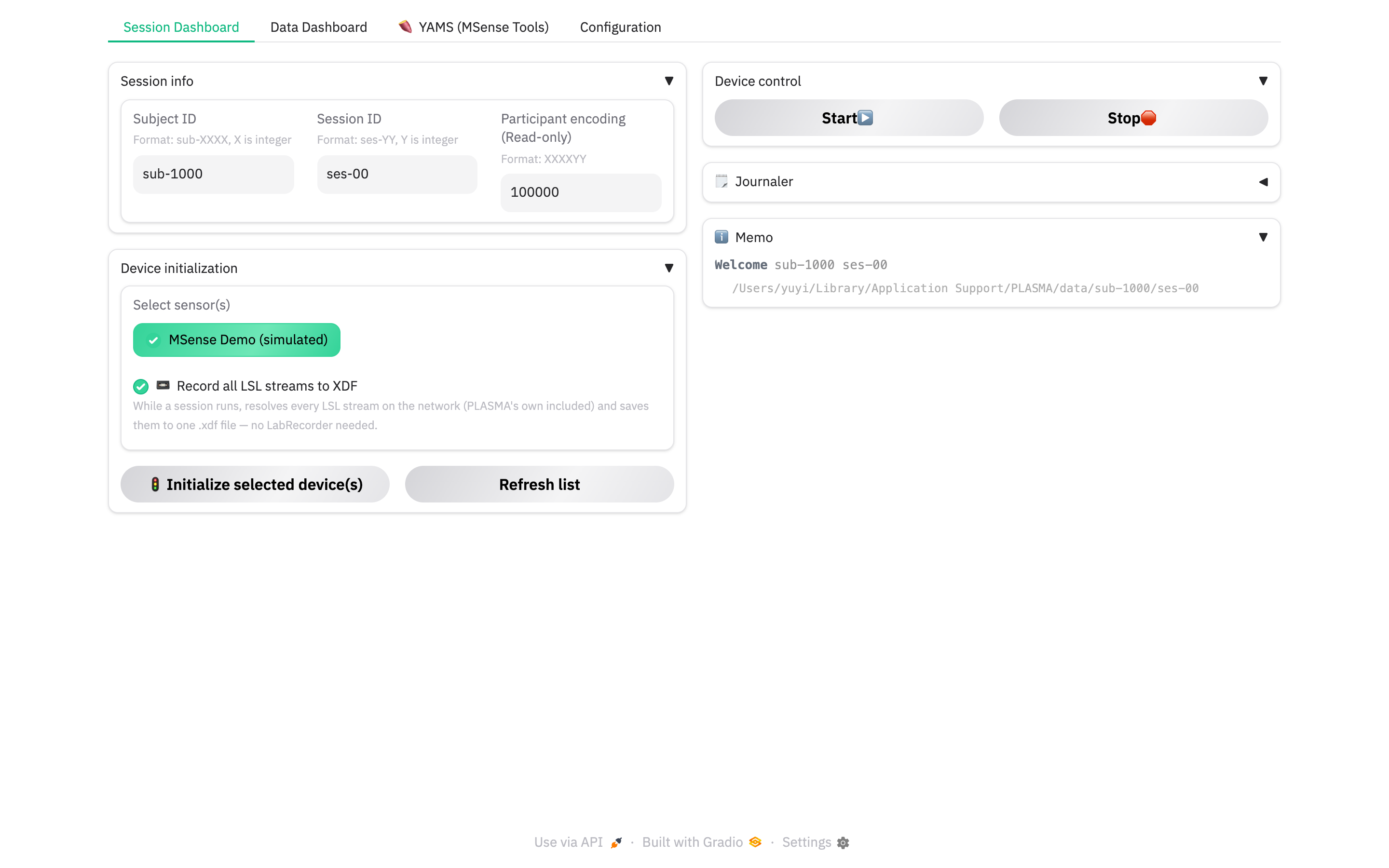
PLASMA opens on the Session Dashboard. The tab strip across the top is:
- Session Dashboard — enter IDs, initialise devices, Start / Stop, watch the memo.
- Data Dashboard — live per-channel plots of any stream.
- 🍠 YAMS (MSense Tools) — wristband signal-quality, orientation, download, extract.
- Configuration — the device catalog, network addresses, demo mode, power.
The YAMS tab only appears when an MSense device (real or simulated) is enabled.
Seeing more tabs than it should?
You can manage what devices be enabled by referencing to Configure PLASMA.
Next: Configure PLASMA.